


Introduction
The Zoom Transcript functionality allows you to capture every detail of your coaching sessions automatically. When a meeting is recorded in Zoom, a full transcript is generated and seamlessly added to the corresponding Coaching Session in AcceleratorApp. This makes it easy to:
Review and revisit conversations at any time
Track key decisions and follow-ups from sessions
Share insights with your team or co-coaches
Keep a comprehensive record of coaching interactions for accountability and reporting
Where to Find It
Account > Integrations → Zoom setup
Account > Settings > Coaching → Default meeting provider
Startup File > Activities → Access coaching sessions and transcripts
Step by Step
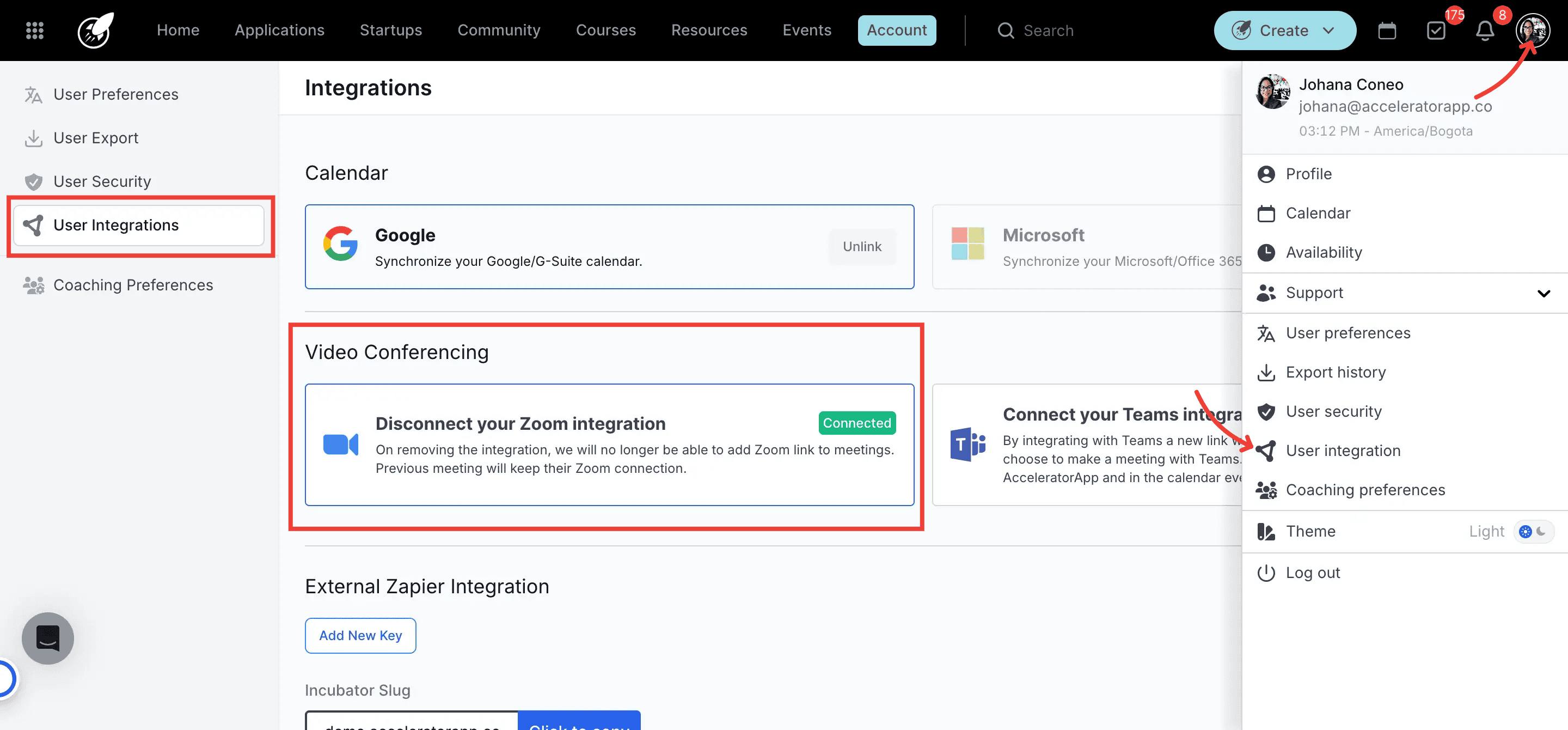
1. Configure Zoom Integration
Navigate to Account > Integrations.
Find Zoom, click Set up, and authorize.
Confirm the integration shows Active.
Expected Result: Zoom appears with a green Connected badge.
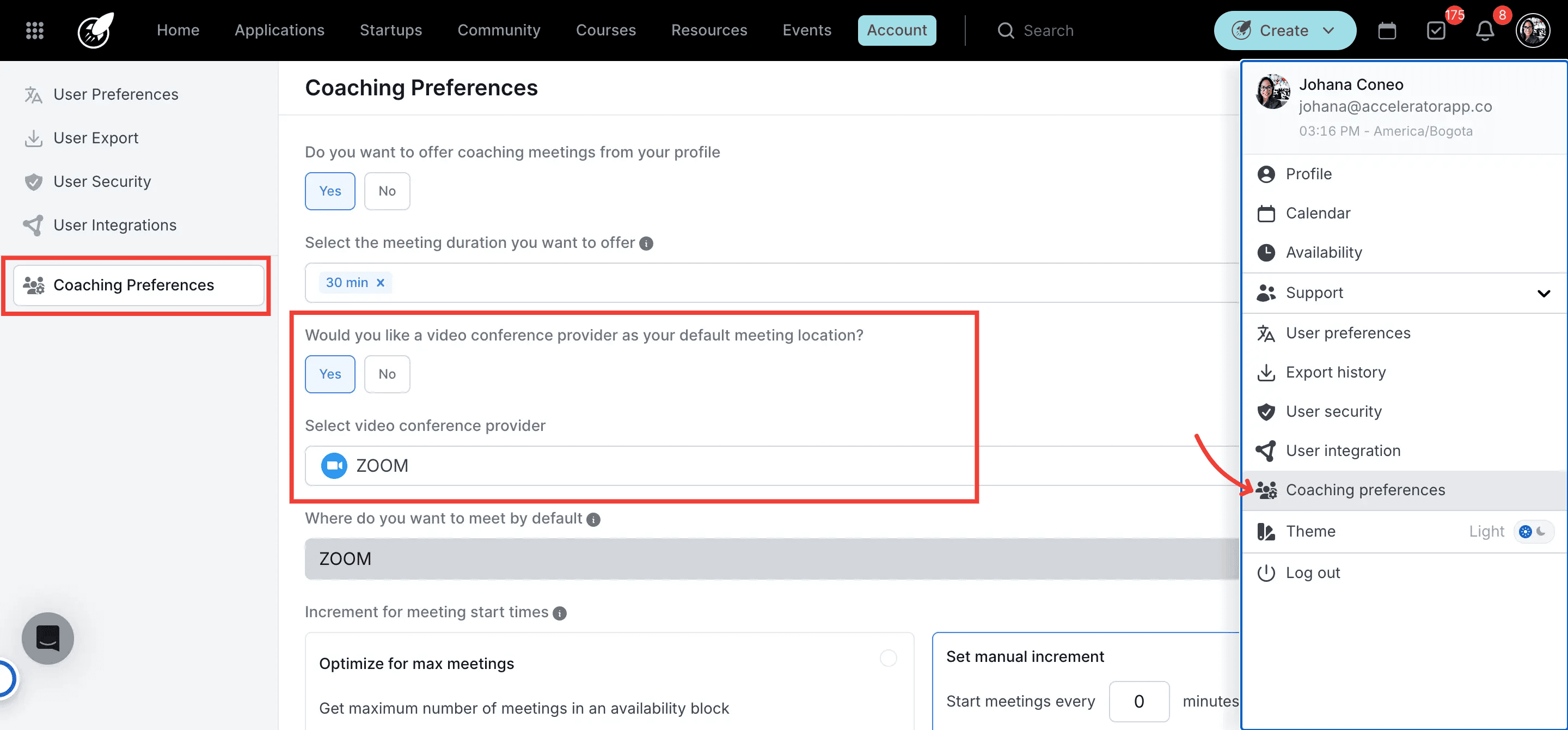
2. Set Zoom as Default Meeting Provider
Go to Coaching Settings.
Toggle Use a video conference provider as your default meeting location? → Yes
Select Zoom from the dropdown.
Click Confirm.
Expected Result: Default meeting type displays Zoom.
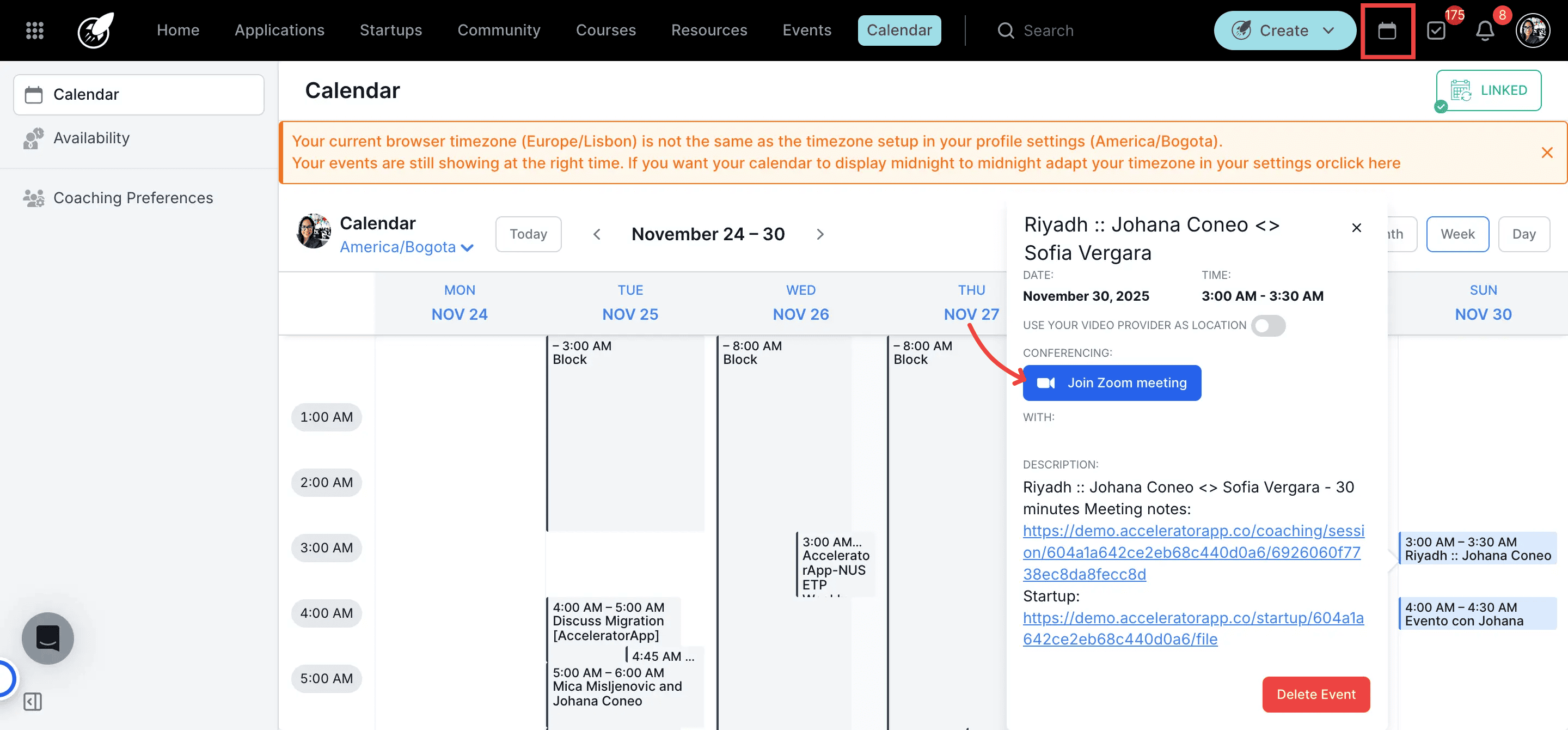
3. Host & Record the Meeting
- Join the meeting via the Join Zoom Meeting link (The meeting has to be scheduled in AcceleratorApp).
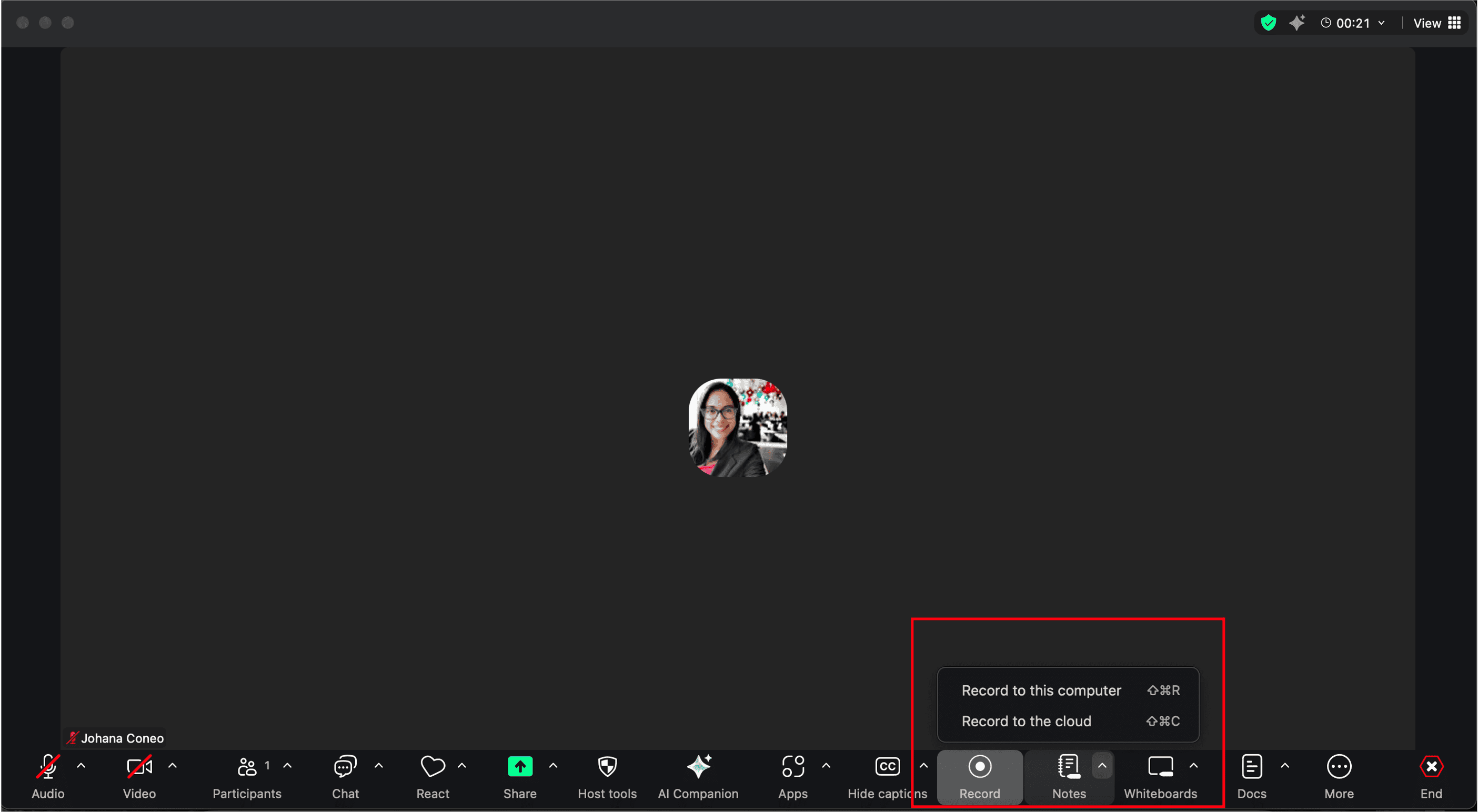
Start Recording the meeting (cloud recommended).
Stop recording and end the meeting.
Expected Result: Recording and transcript saved in Zoom cloud.
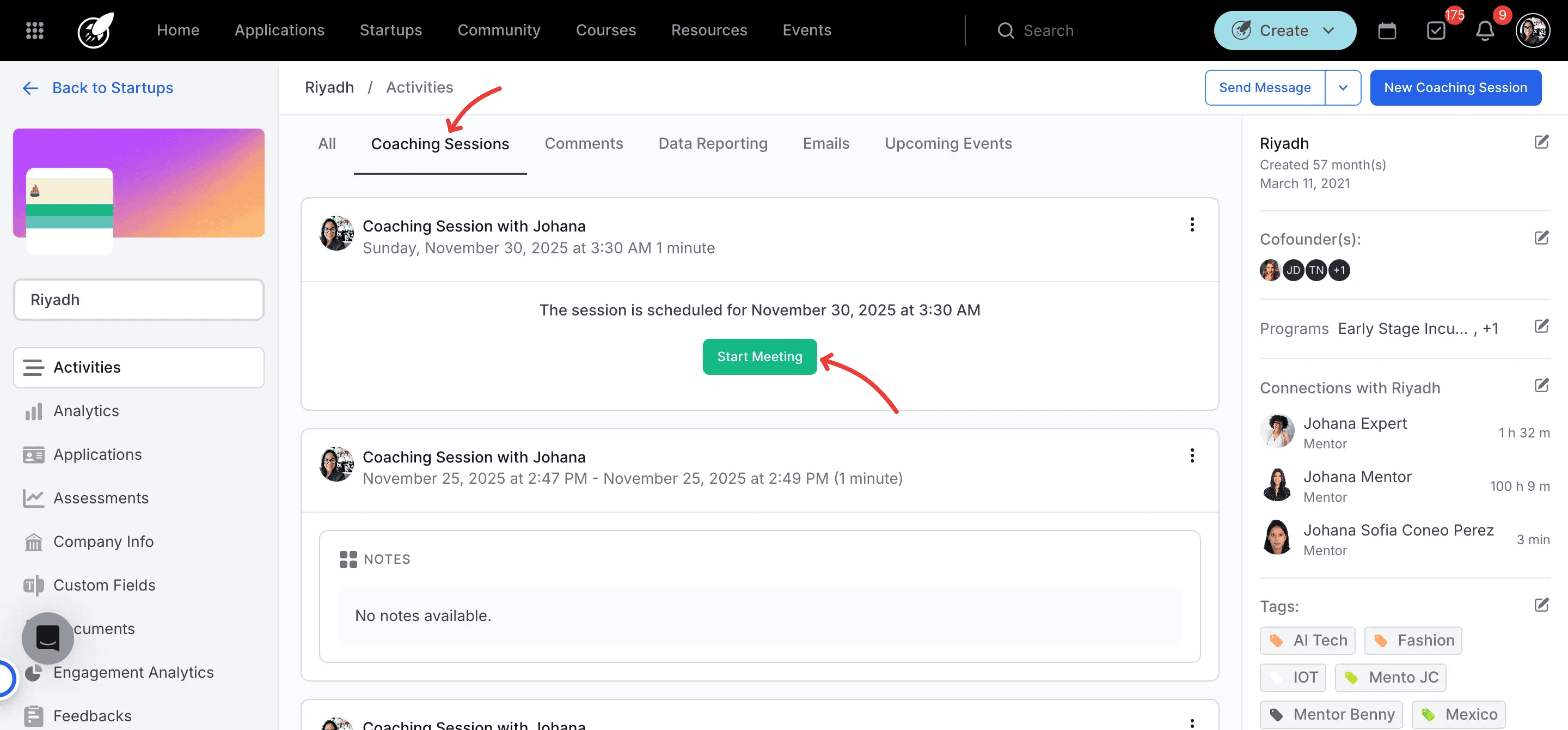
4. Access Startup File & Start Coaching Session
Navigate to Startup File > Activities.
Locate the Coaching Session scheduled with you.
Click Start Coaching Session.
Expected Result: Redirected to Coaching Session page, recording linked.
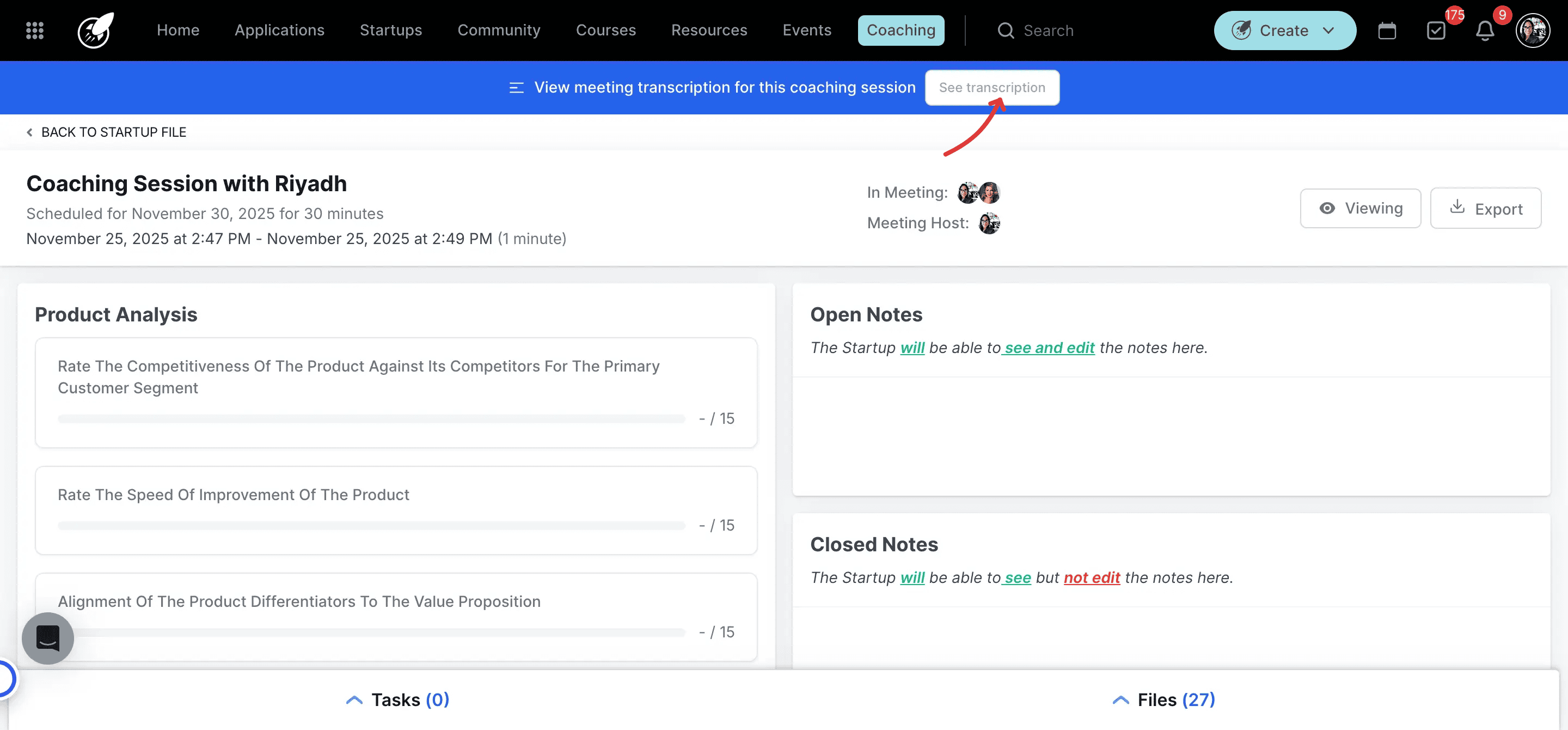
5. View Transcript
On the Coaching Session page, click See Transcript.
Additional Resources
- Meeting Booking Process
- How to Start a Coaching Session
- How to integrate my Zoom Account